

Automatically Label Documents
for AI Training
The intelligent data labeling tool designed for complex document structure analysis, layout parsing, and reading order detection.
Built for ML engineers preparing PDF and scanned-document datasets for layout analysis, OCR, and LLM fine-tuning.
How it works
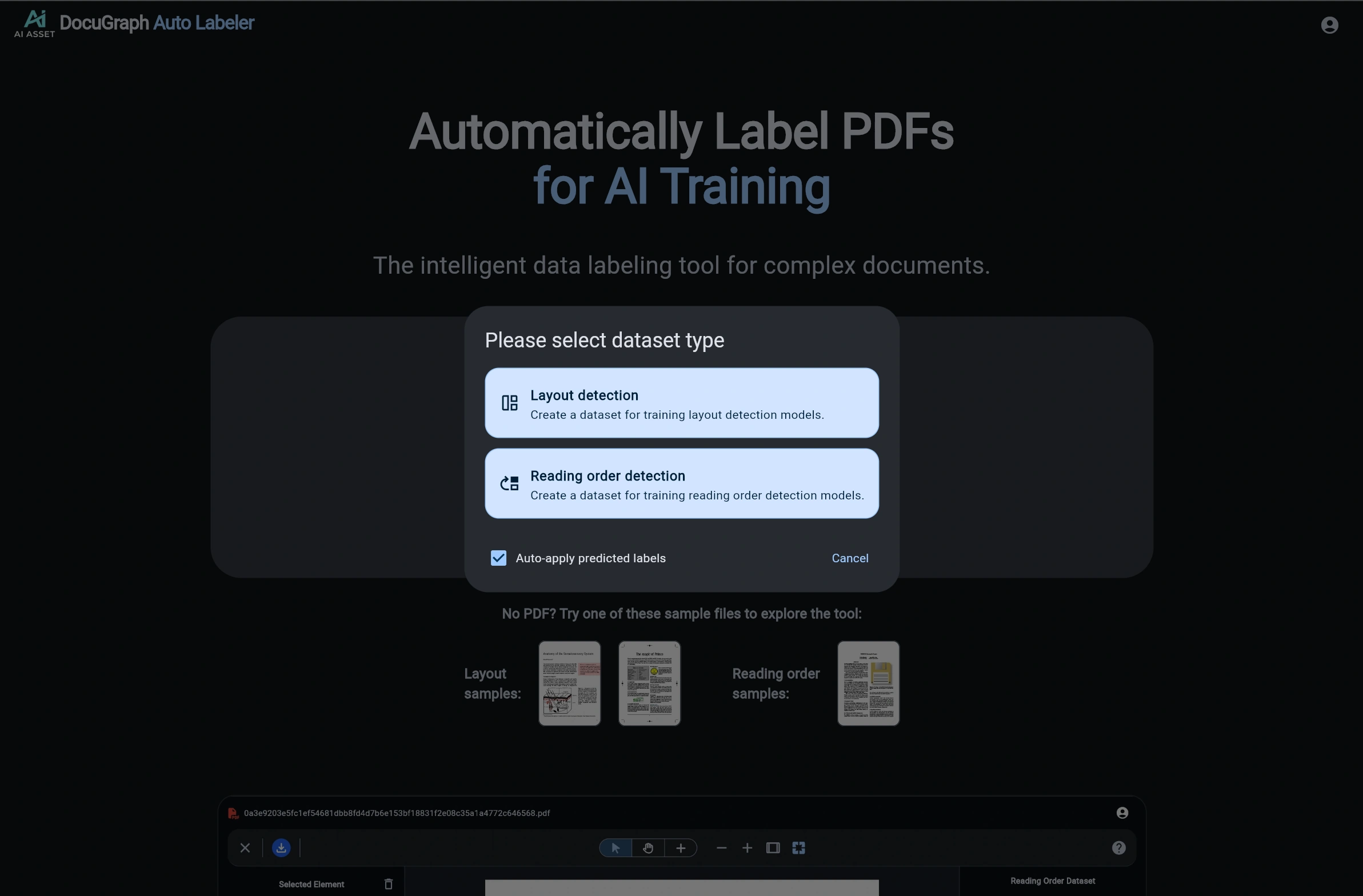
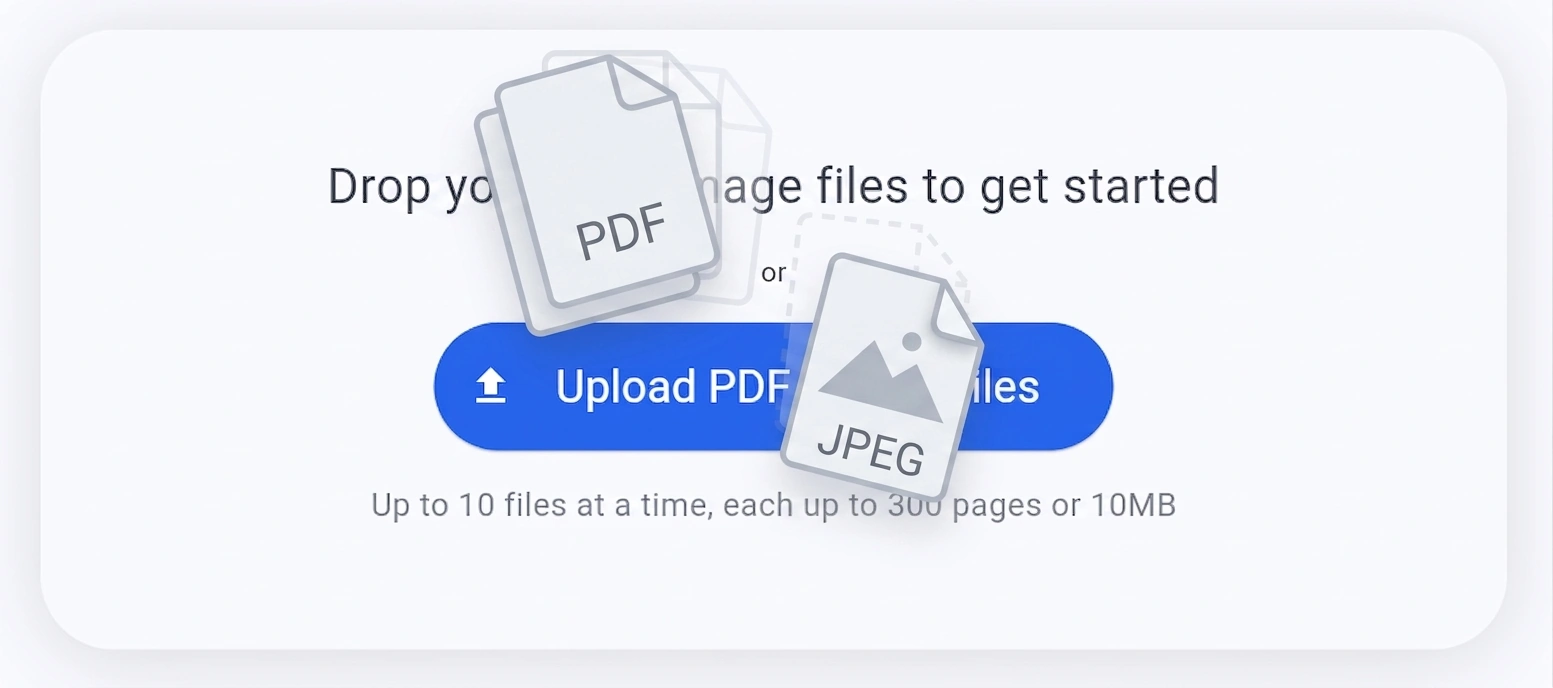
Upload your Document
Simply drag and drop your PDF or image files into the tool. Advanced AI models automatically identify and segment document elements.
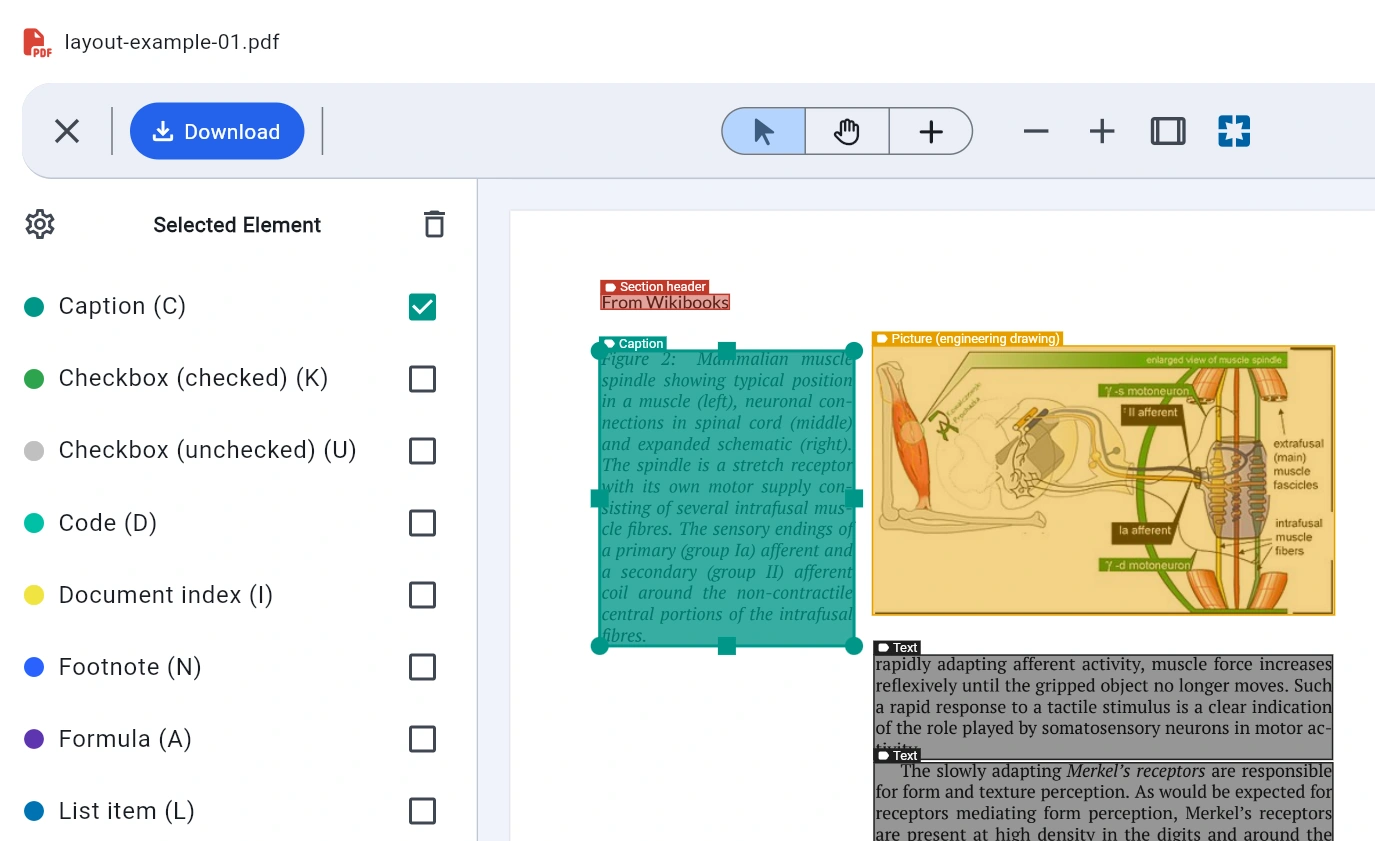
Review & Refine
Use our intuitive UI tools to review, adjust, and refine automatically detected document structures, bounding boxes, and reading flows.
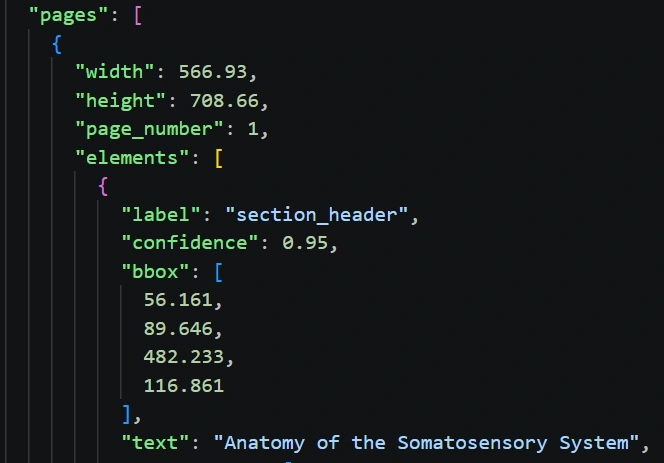
Export JSON
Once labeling is complete, export structured datasets ready for fine-tuning Large Language Models (LLMs) or Layout AI models.
Engineered for Document AI Workflows
High-precision layout understanding built for enterprise dataset preparation.
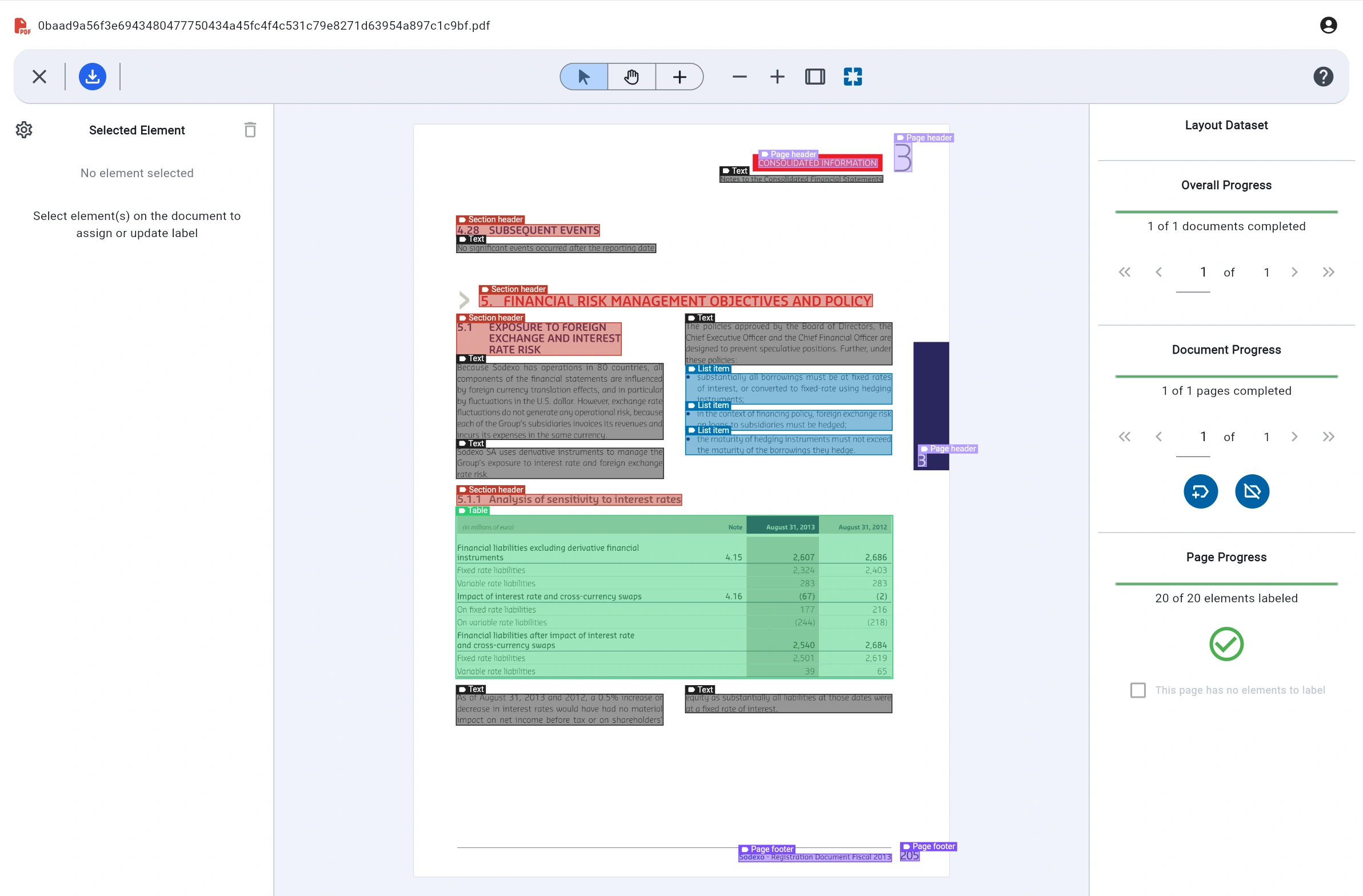
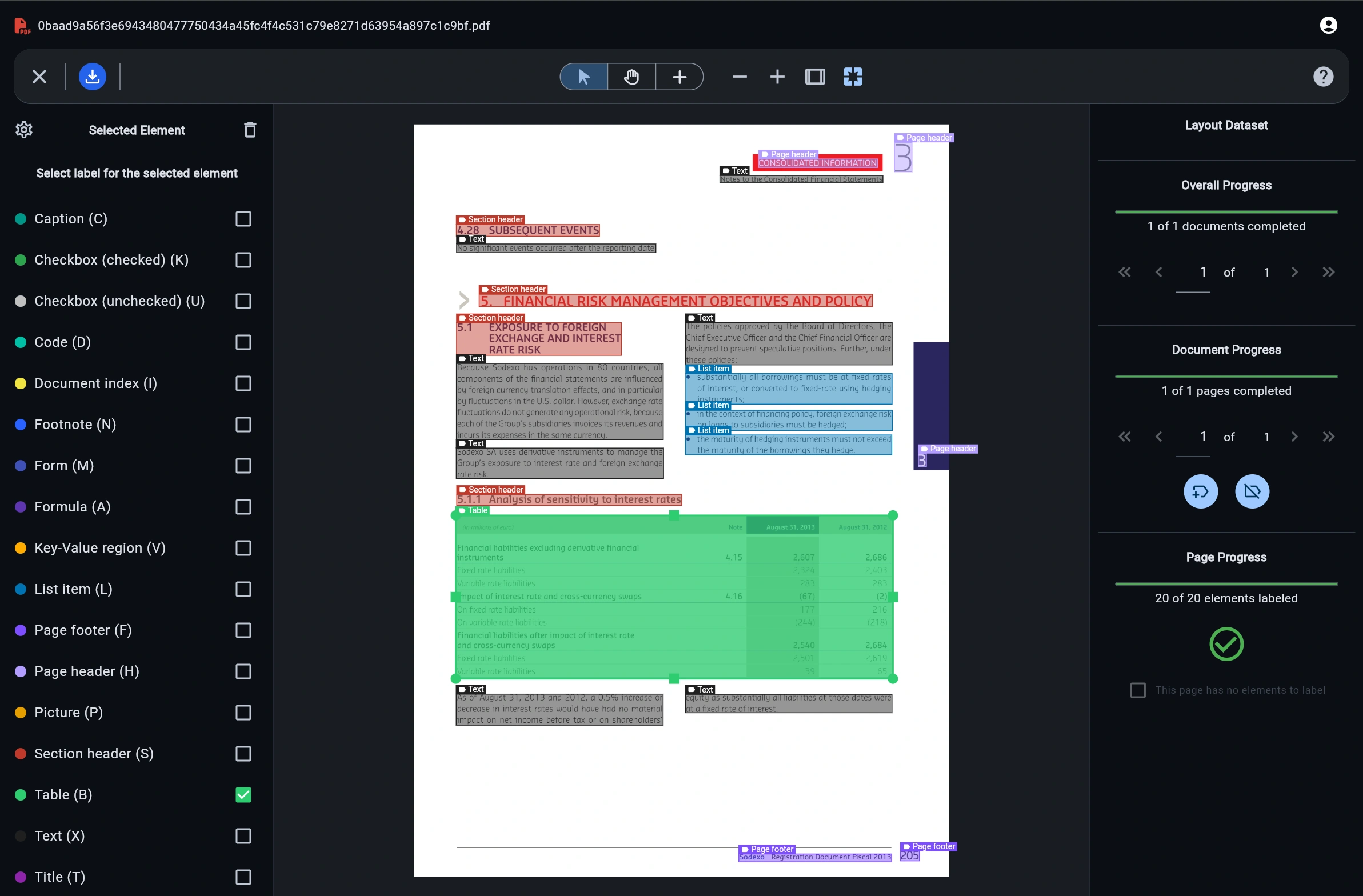
Automated Layout Segmentation
Instantly segment multi-column documents, headers, footers, tables, and figures without manual box drawing.
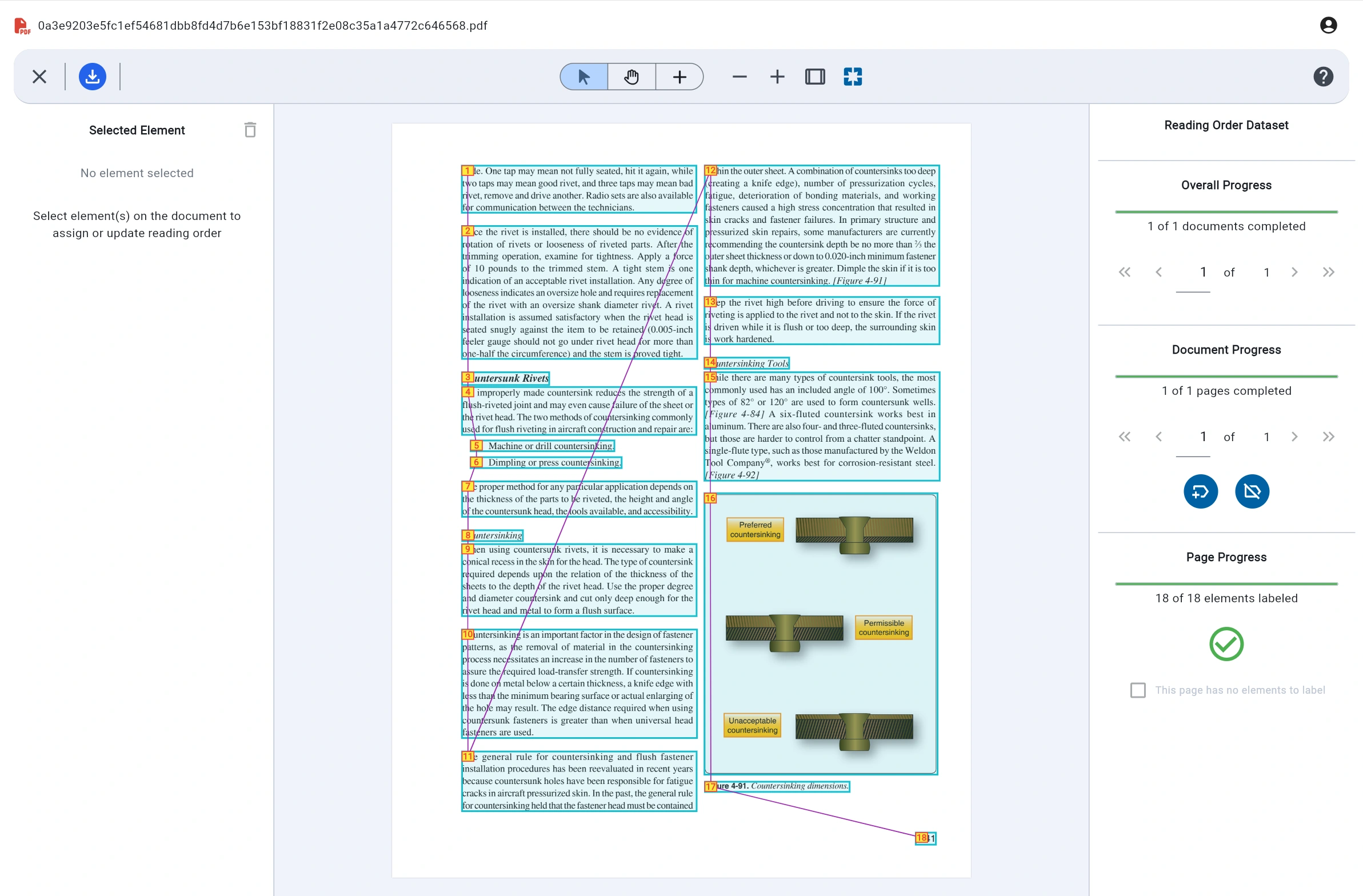
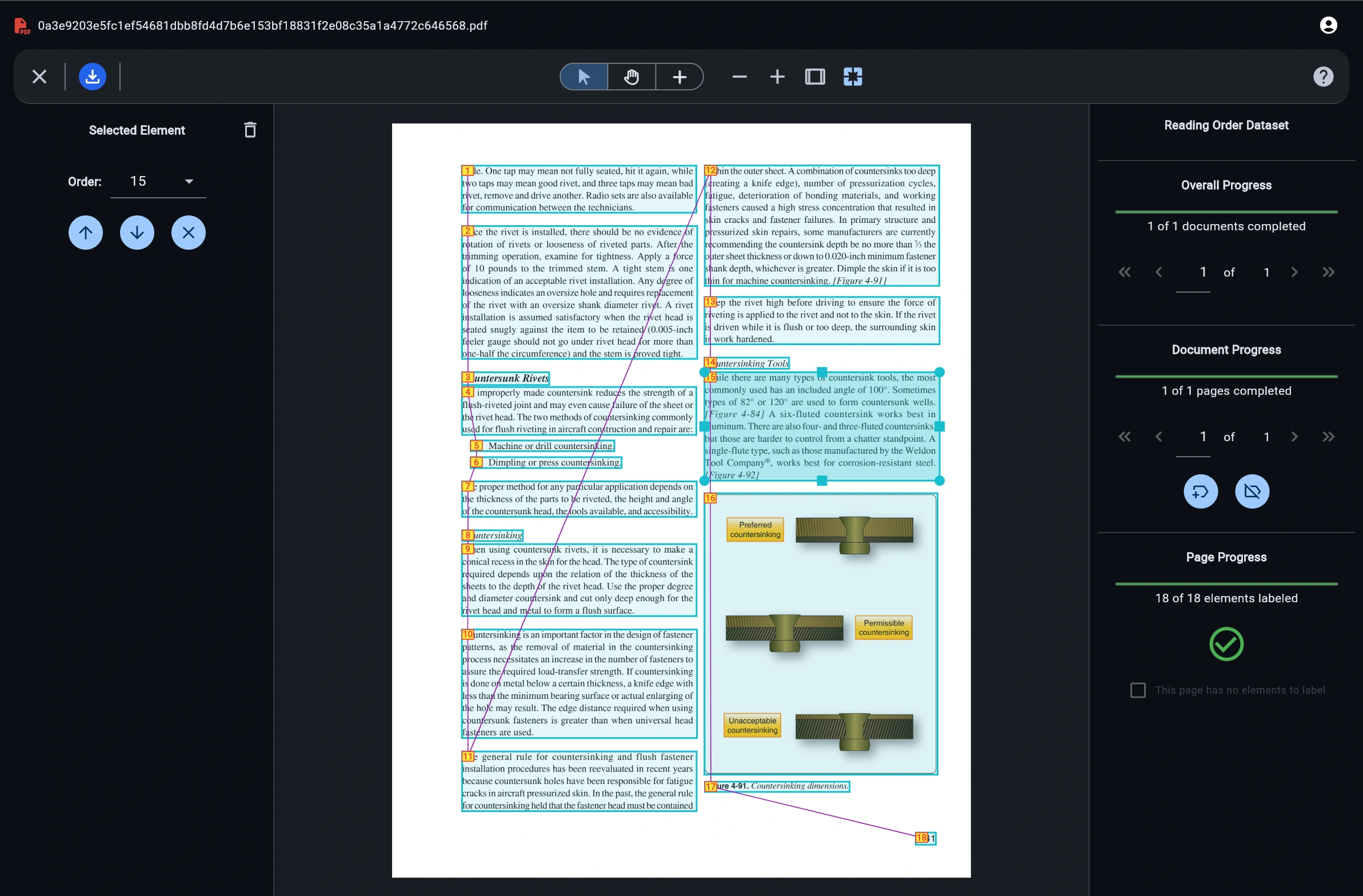
Reading Order Detection
Preserve logical reading sequences across complex non-linear document layouts for LLM fine-tuning.
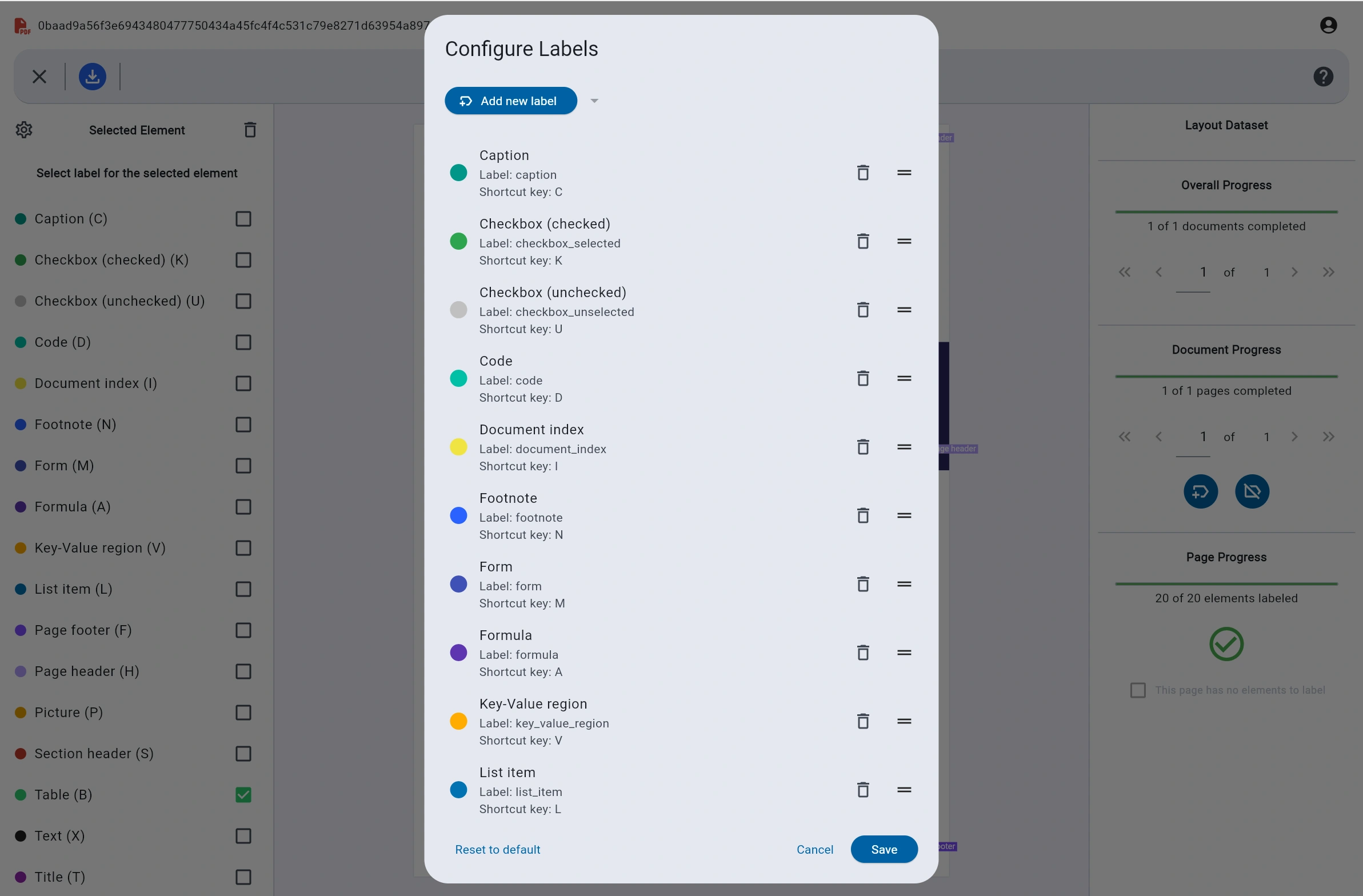
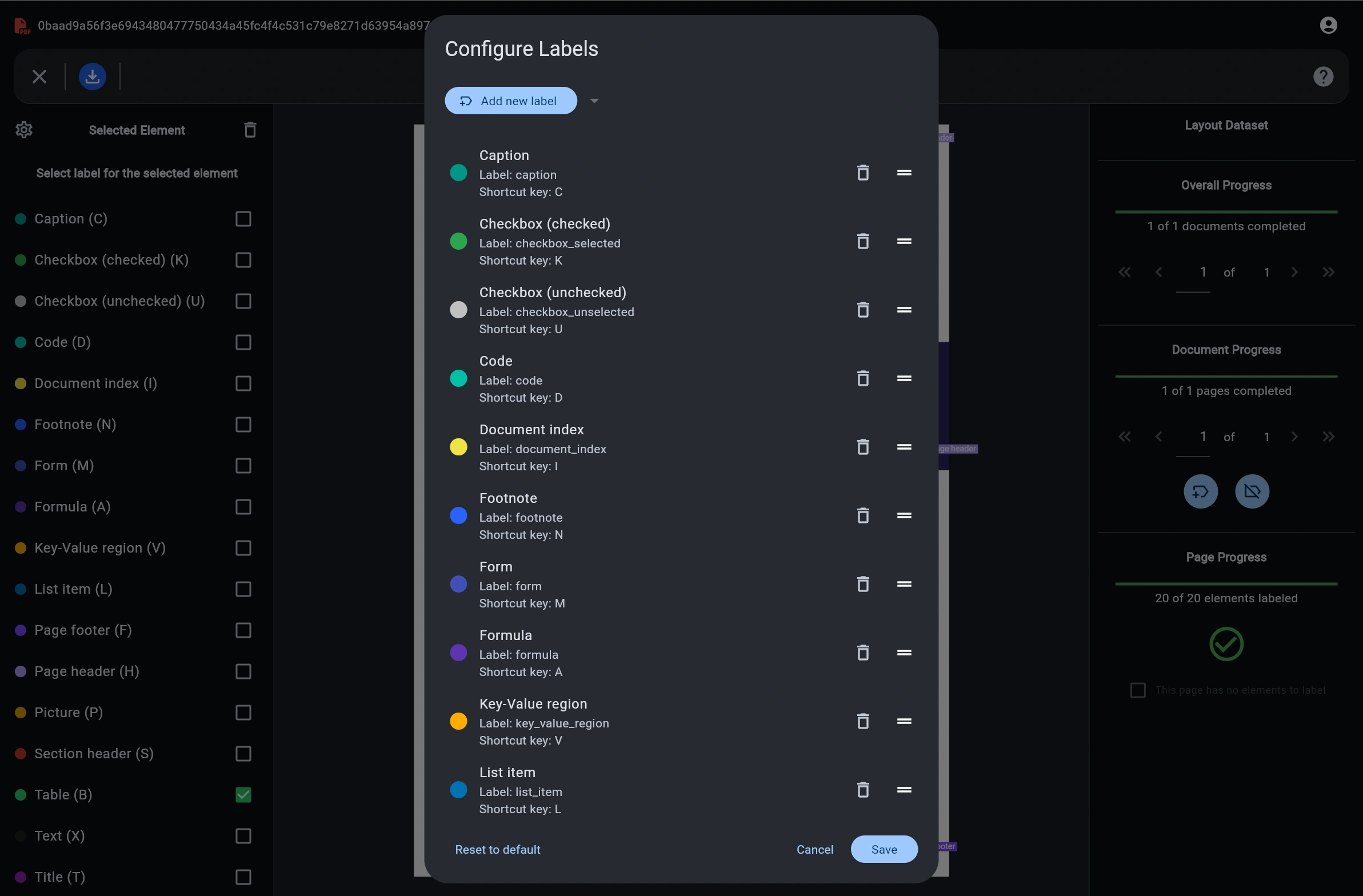
Custom Label Configuration
Configure tailored label hierarchies, key-value pairs, checkboxes, code blocks, and custom annotations.
Clean JSON Export
Export standardized JSON structured datasets ready for direct integration into PyTorch or Hugging Face pipelines.
What teams build with DocuGraph
From financial filings to technical manuals, turn real-world PDFs into training data for the models you are building.
Layout detection models
Label titles, section headers, text blocks, tables, pictures, captions, lists, headers, and footers to train models that understand how a page is organized.
Reading order models
Mark the correct sequence of elements on multi-column pages with figures and sidebars, so models can read a document the way a person would.
Document data for LLMs
Prepare clean, structured text from reports, manuals, and forms for LLM fine-tuning and retrieval pipelines, with tables, lists, and captions kept intact.
Frequently asked questions
Quick answers about labeling documents with DocuGraph Auto Labeler.
What is DocuGraph Auto Labeler?
DocuGraph Auto Labeler is a web-based data labeling tool for documents. It automatically detects layout regions and reading order in PDFs, lets you review and correct the results, and exports structured JSON datasets for training Document AI and LLM models.
What file formats are supported?
You can upload PDF and image files. Each page is processed separately, so multi-page documents are labeled page by page, with progress tracked for the page, the document, and the whole project.
What types of datasets can I create?
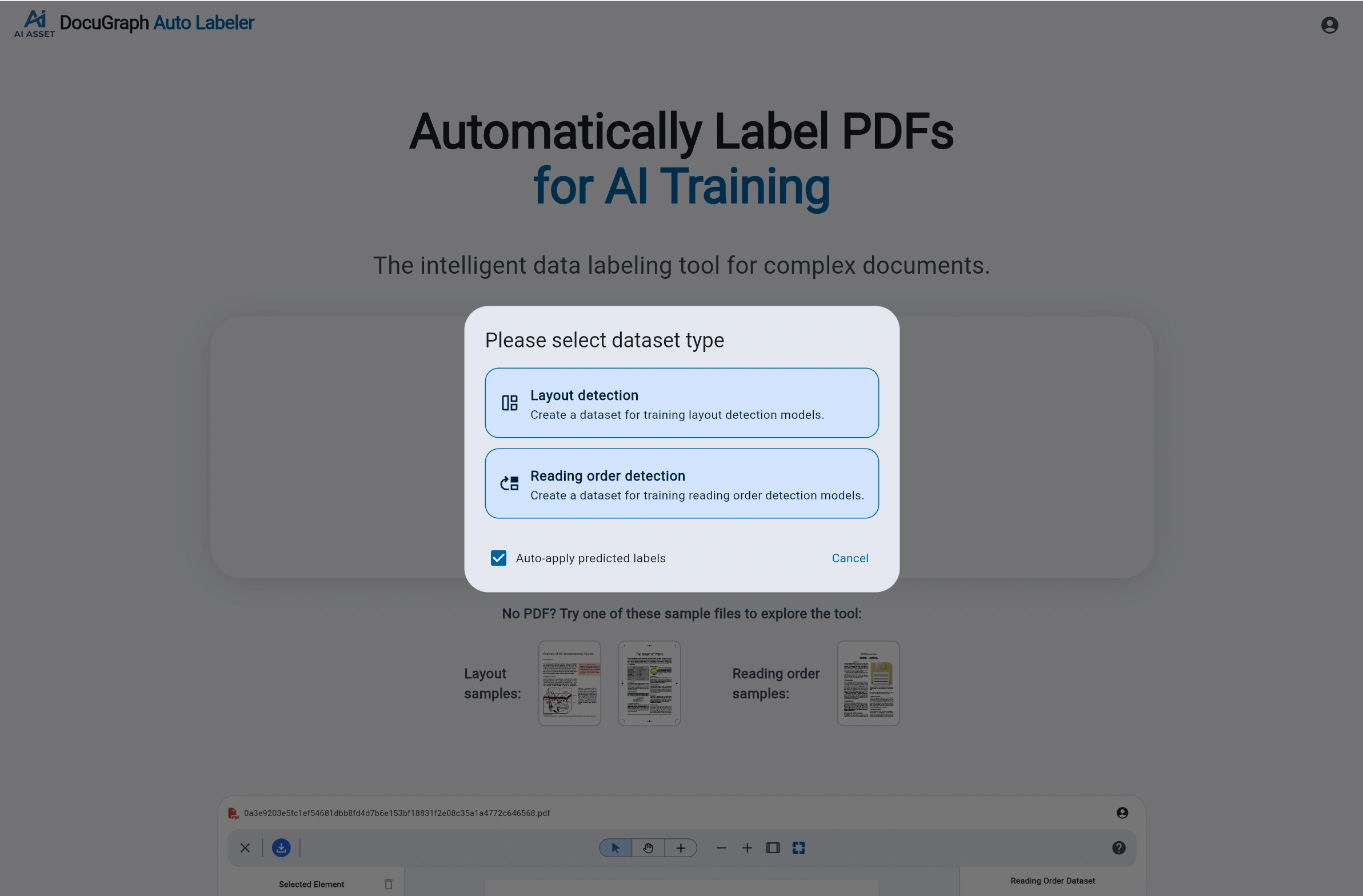
There are two dataset types. Layout detection datasets label regions such as titles, section headers, text, tables, pictures, captions, and list items. Reading order datasets mark the sequence in which the elements on a page should be read.
Can I customize the labels?
Yes. The label configuration lets you add, remove, and reorder labels, and set a name, color, and keyboard shortcut for each. Default labels include caption, checkbox, code, footnote, form, formula, key-value region, list item, page header, page footer, picture, section header, table, text, and title.
What does the JSON export contain?
The export is a structured JSON dataset of your labeled documents, intended for use in Python training pipelines such as PyTorch and Hugging Face. Layout datasets contain the labeled regions on each page, and reading order datasets contain the order of the elements.
Do I need to sign up to try it?
No. You can open the app and try the built-in sample documents, which include layout and reading order examples, without signing up.
What does auto-apply predicted labels do?
When you upload a document, the tool can automatically predict labels for the elements it detects and apply them. You then review each page and correct anything that is wrong, which is much faster than drawing every box by hand.
Ready to accelerate your document AI dataset creation?
No tedious sign-ups required to try sample datasets.
Open DocuGraph Auto Labeler